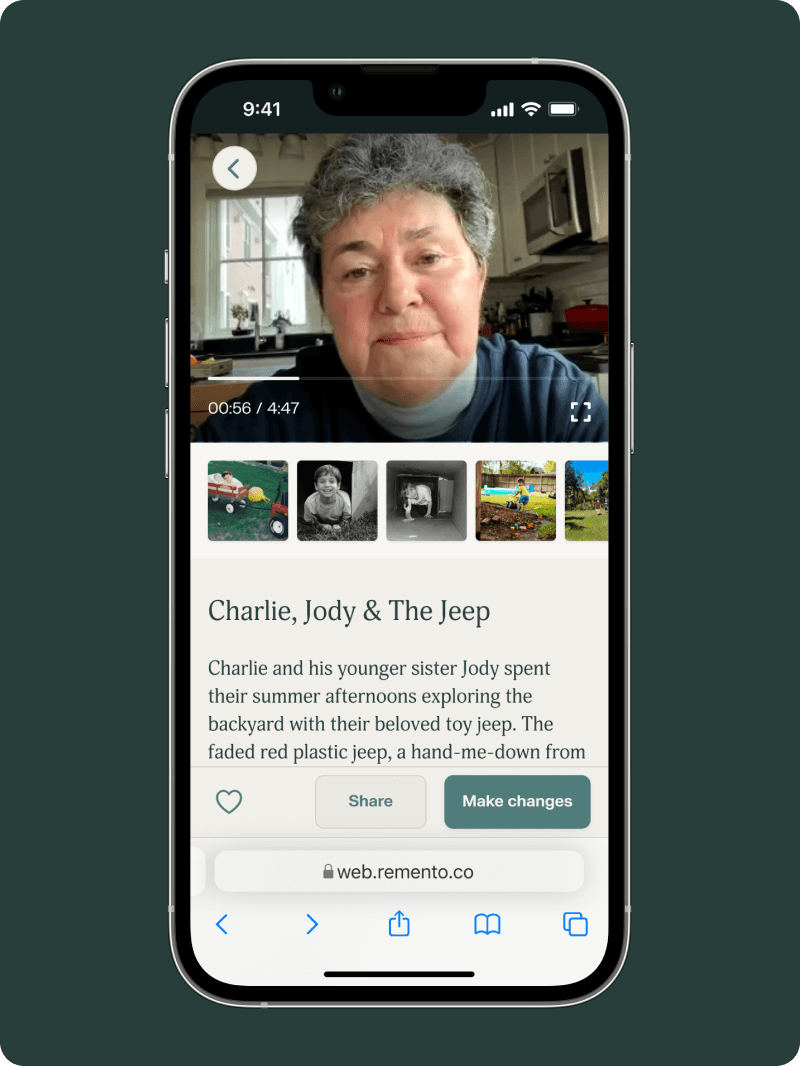
Photos will make your book shine
Every story on Remento can have photos added to it after the recording is finished. Simply go to your story, and start by selecting “Make changes”.
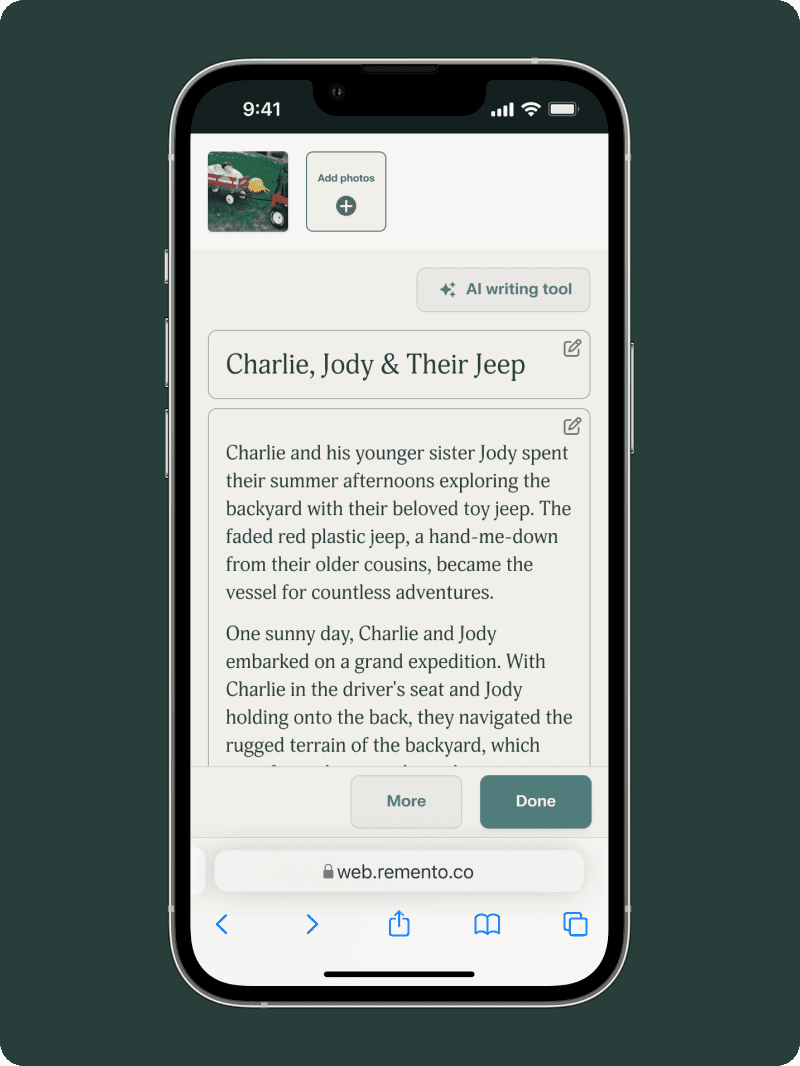
Select the “Add photos” button
Starting the photo upload process begins right from your story, where you can add photos or choose to change or remove a photo.
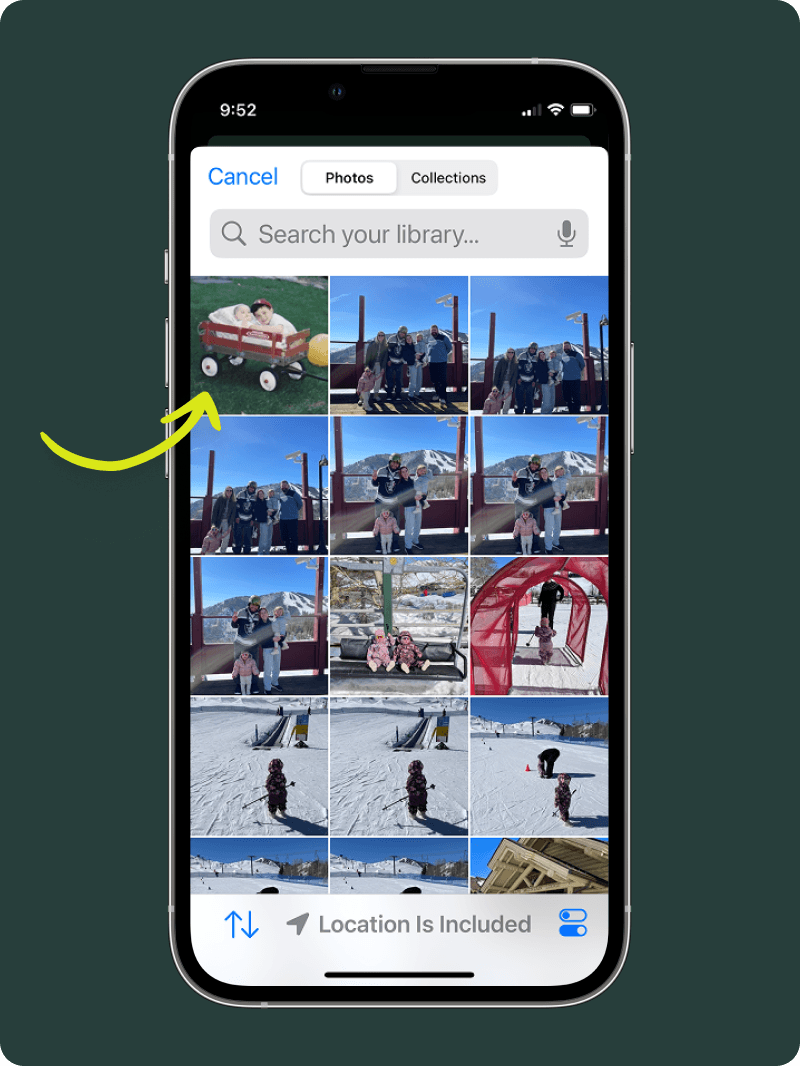
Use Remento’s photo upload tool
Add images from your phone or computer, or connect with Facebook, Instagram, Google Drive or Dropbox to add photos.
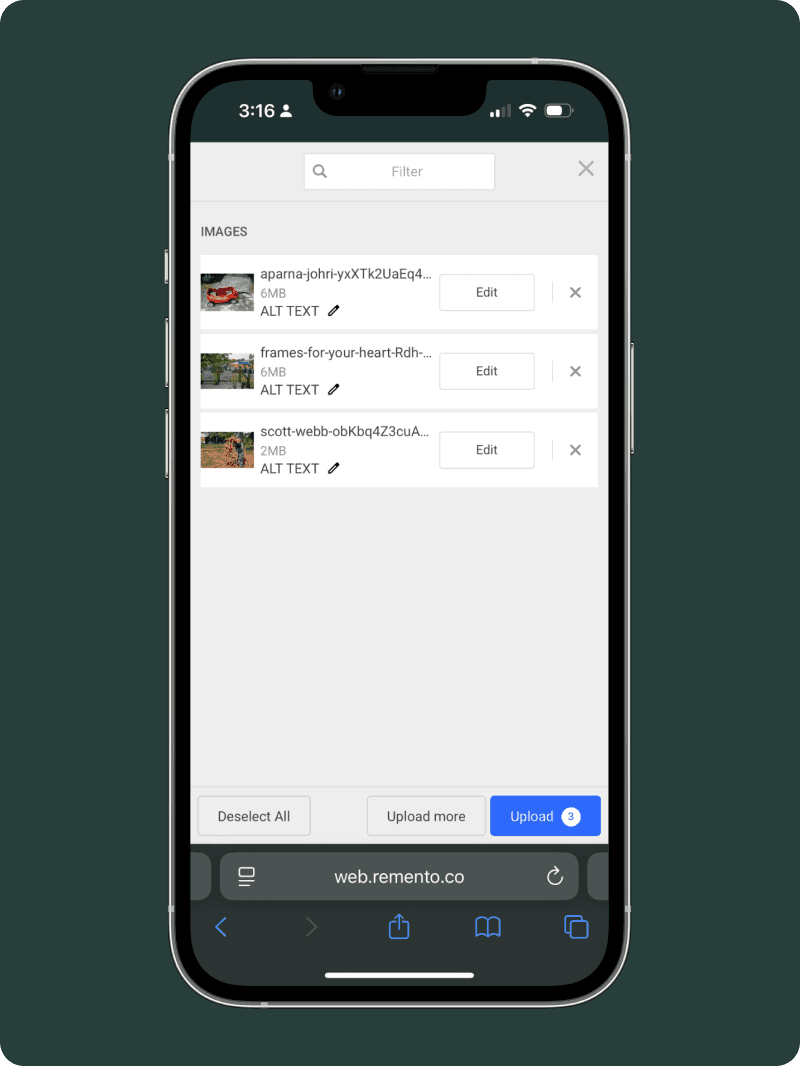
Choose to crop or rotate
You can make changes to your photos (like cropping) before selecting to upload the photos to your story.
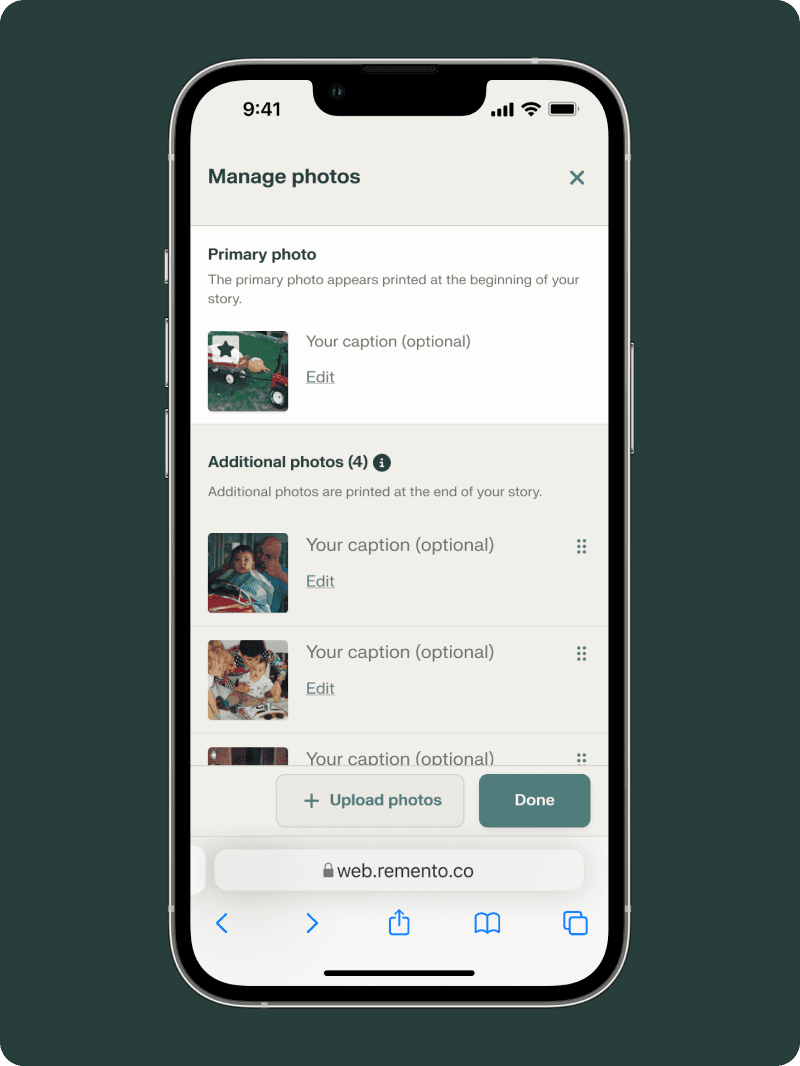
Reorder your photos
Simply drag and drop photos to reorder them.
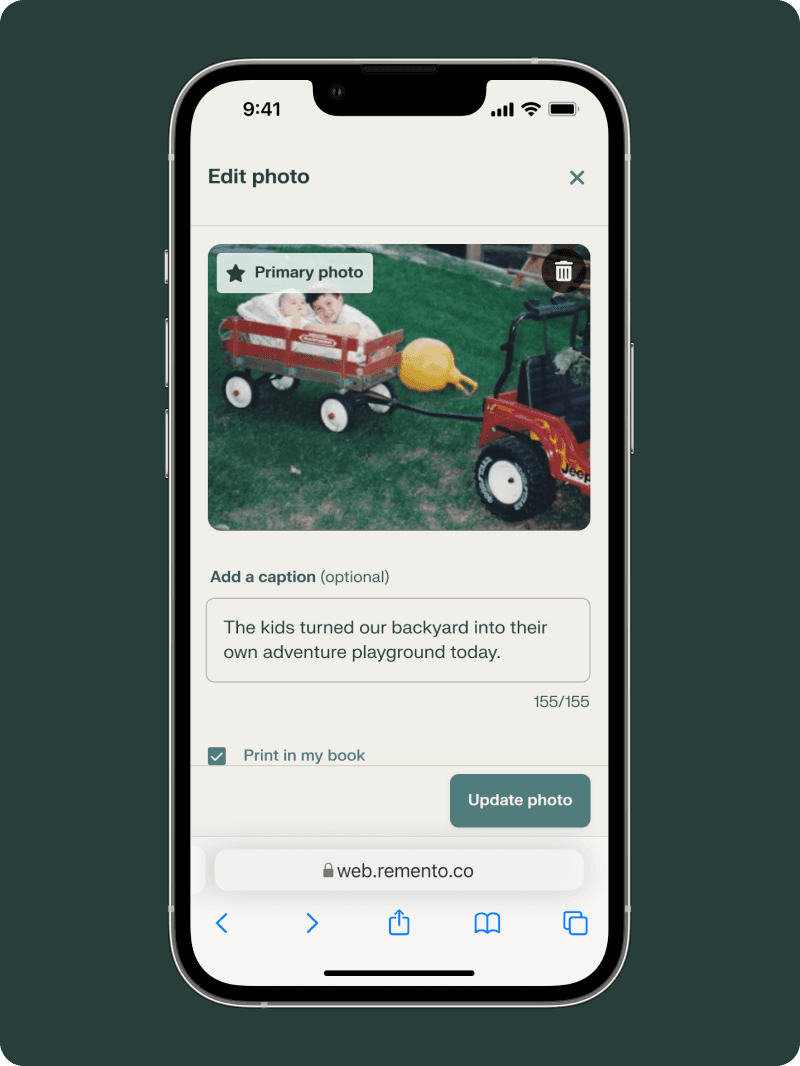
Add a caption
You can add a caption to the photo, select that photo to be the primary photo, as well as delete the photo.
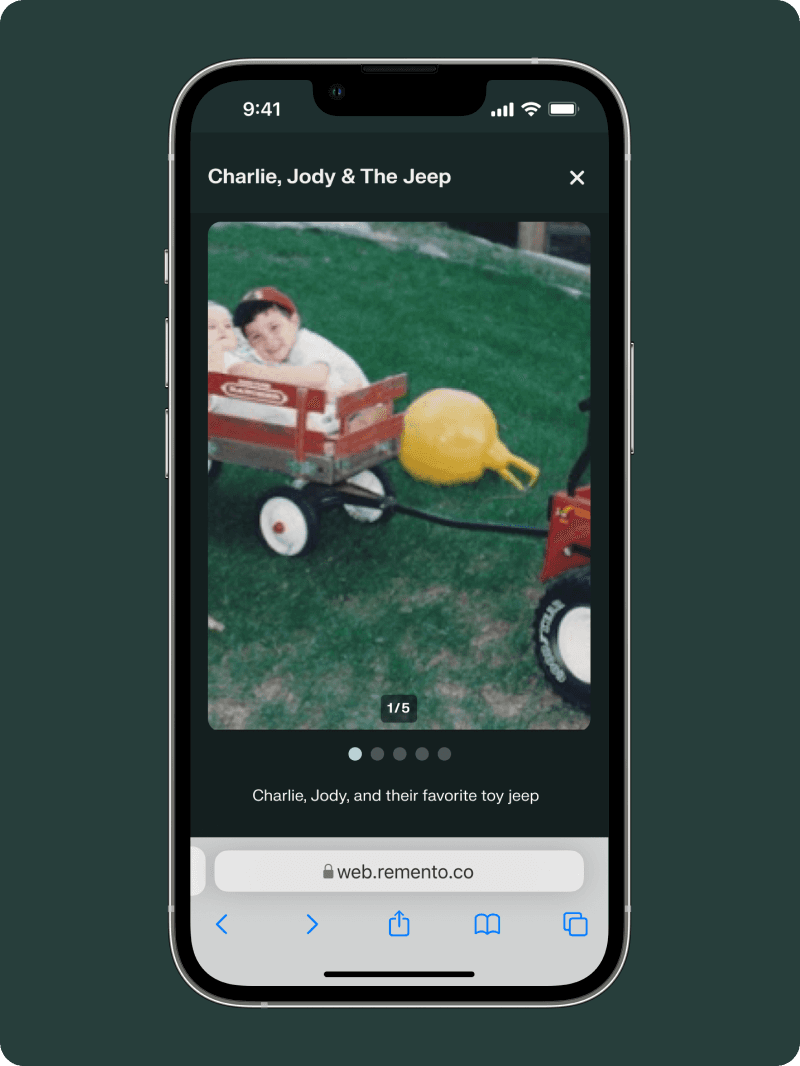
View your photos full-screen
After adding photos, when someone views your story online, they can tap a photo to view it full-screen, all while listening to the narrated story.
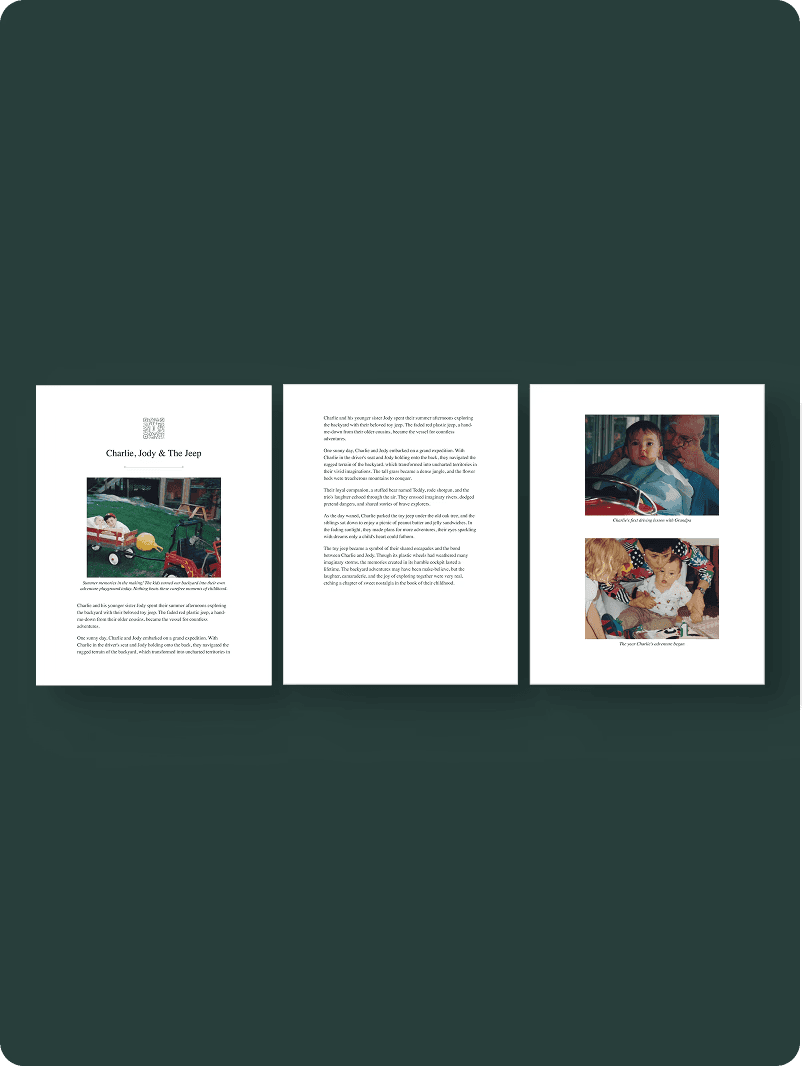
How it looks in the book
Your primary photo is placed below the QR code and title of the story. Your other photos will be placed at the end of the story. Remento books are printed in full-color.